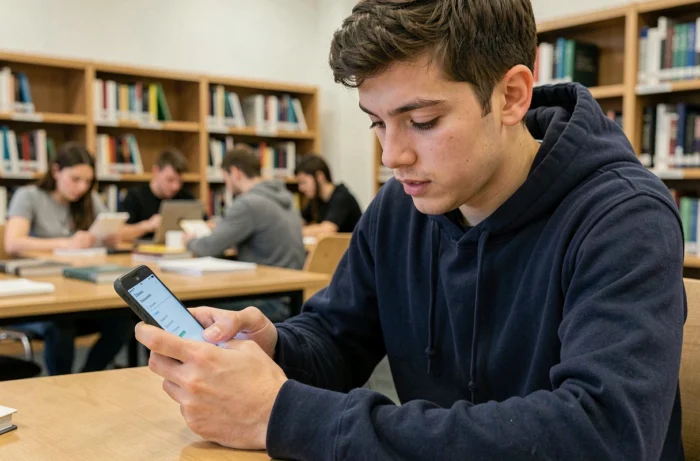
Accessing your INSA Rouen emails from a smartphone avoids the need to open a computer for every notification. The institution’s messaging system relies on a Normandy academic infrastructure that operates with the IMAP protocol, compatible with most mail applications. However, you need to enter the correct settings the first time to avoid getting stuck on an error screen.
Check your INSA Rouen webmail access before touching your mobile
Before opening your phone’s settings, take two minutes to connect to the academic webmail from a browser. This often-overlooked step resolves most issues encountered later on mobile.
Go to the Normandy Academy webmail interface (webmail.ac-normandie.fr) and enter your INSA credentials. If the connection is successful and your inbox appears, you know that your username, password, and storage quota are functional.
If the connection fails, the problem is not with your smartphone. Check the case sensitivity of your password, any potential account lockout, or a full quota. A detailed guide allows you to configure INSA Rouen messaging on Geektroniques in addition to this preliminary check.
Why this precaution? Because diagnosing an authentication failure directly on a phone screen, without an explicit error message, can waste a considerable amount of time. The webmail provides clear feedback (expired password, full inbox), whereas the mobile app often just gives a terse “unable to verify the account.”

IMAP protocol for mobile messaging: why not POP
Your mail application generally offers two protocols for retrieving messages: IMAP and POP. Only IMAP is recommended for mobile use at INSA Rouen.
The difference is simple. IMAP synchronizes your emails between the server and your device. If you read a message on your phone, it appears as read on the webmail, and vice versa. POP, on the other hand, downloads messages to a single device and may delete them from the server.
With POP, an email read on the smartphone may no longer appear on the campus computer. For a student checking their email from multiple devices, this is a classic trap. The Normandy academic infrastructure actually promotes IMAP as the only recommended option for remote access.
IMAP and SMTP settings to configure INSA Rouen messaging
Open your phone’s native mail application (Mail on iOS, Gmail or another app on Android), then choose “Add Account” and select “Other” or “IMAP.” Here are the details to enter.
Incoming mail server
- Protocol: IMAP, with the server type imap.ac-normandie.fr
- Port: 993, with SSL/TLS encryption enabled
- Username: your full academic email address (format firstname.lastname)
- Password: that of your INSA Rouen account
Outgoing mail server
- Protocol: SMTP, with the server smtp.ac-normandie.fr
- Port: 465 or 587 depending on the application, with SSL/TLS or STARTTLS encryption
- Authentication required: yes, with the same credentials as the incoming server
On some Android phones, the application may ask to “accept all certificates” for encryption. Check this option if the connection fails with the default setting, but only on the institution’s network or a trusted network.
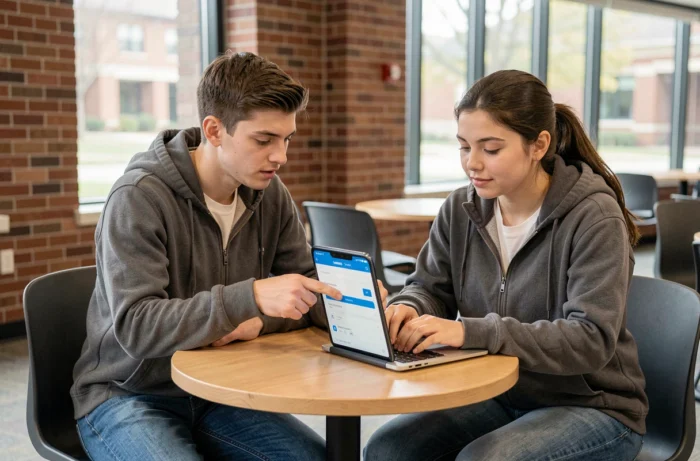
Resolving common errors after mobile configuration
You have entered all the settings, validated, and the phone displays an error. Before starting over, check these three points.
The port is often the first source of blockage. If you entered 993 for IMAP and the connection fails, ensure that the encryption is set to SSL/TLS and not to “None.” Port 993 only accepts encrypted connections.
The username can also be problematic if you only enter the part before the @ symbol. Most academic servers expect the full address. Enter it in full, including the domain.
Finally, uppercase letters matter in the password. Check that the caps lock is not enabled by default on the phone’s keyboard. The INSA Rouen authentication pages display an explicit warning when caps lock is on, but this alert does not exist in the phone’s mail configuration forms.
Partial synchronization to save space
Once the account is added, the application will attempt to download all message headers. On an old account with several years of emails, this can take time and occupy local storage space.
Set the synchronization period to the last two or three weeks. This option can be found in the advanced settings of the mail account, under a title like “Synchronization Period” or “Messages to Synchronize.” Older emails remain accessible via the webmail if needed.
The INSA Rouen messaging on mobile works reliably once the correct settings are in place. The reflex to maintain: first test the webmail, choose IMAP, and enter the full email address as the username. If the account refuses to connect after checking all these points, the IT service at INSA remains the right contact to unlock access.