
Canon ink cartridges come with a chip that counts each printed page and each cleaning cycle. When the firmware considers the cartridge empty, it blocks printing, even if there is still ink left in the tank. Understanding the role of this chip and knowing how to intervene allows for the recovery of a significant printing volume.
EEPROM Rewrite and Service Mode on Canon Pixma Printers
Resetting a Canon cartridge is not limited to reinserting it or holding down the Stop button. On most Pixma models, reprogramming involves rewriting the EEPROM using a dedicated utility, often referred to as the Canon Service Tool.
Accessing service mode requires a precise sequence at the printer’s startup (a combination of pressing the Power button and the Stop button, varying by model). Once this mode is activated, the utility communicates with the motherboard to reset the ink and absorber counters to their factory values.
We recommend noting the exact model reference before any manipulation. An MG2400 and an MG2500 share a similar procedure for resetting the ink absorber counter, but the service mode entry sequences differ. Using the wrong sequence does not pose a hardware risk, but the utility simply will not detect the printer.
After clearing the counters, a complete power restart is necessary: unplug the power supply, wait about thirty seconds, then plug it back in. This power reset validates the rewrite in non-volatile memory and prevents communication errors in the next printing cycle. Before attempting any manipulation, it is advisable to consult a detailed guide for reprogramming a Canon cartridge according to your exact model.

Metal Contacts and Chip: Points of Failure to Check
When a Canon printer refuses a refilled cartridge, the usual reflex is to suspect an ink problem. However, the diagnosis starts elsewhere.
- The metal contacts located under the cartridge accumulate dried ink residues and micro-oxidation deposits. Cleaning with isopropyl alcohol on a lint-free cloth restores conductivity in most cases.
- The chip itself may have micro-scratches or misalignment after a refilling operation. Visually checking the alignment of the chip in its housing avoids an unnecessarily complex diagnosis.
- The printer’s firmware may have been automatically updated, adding an additional check on third-party or refilled cartridges. Disabling automatic firmware updates protects compatibility with reprogrammed cartridges.
On recent ranges like the Canon GX (MegaTank), the logic changes. The maintenance cartridges MC-G05 and MC-G06 include a dedicated chip that manages the filling level of the absorber. Reprogramming these consumables requires a specific tool capable of communicating with this chip, not just a generic counter reset.
Canon Ink Refilling: Technique and Limits of Manual Filling
Refilling a Canon inkjet cartridge is feasible on most models with integrated print heads (PG and CL series). The cartridge has a refill hole accessible after removing the top label. A graduated syringe allows for injecting ink without overpressure.
Exceeding the nominal volume of the tank causes leaks that damage the print head and contacts. We find that most refilling failures stem from excess ink, not from compatibility issues. Injecting slowly, in increments, while allowing the internal sponge to absorb the liquid between each injection yields the best results.
After refilling, the chip continues to display a low level or an error message. This is normal. On Canon inkjet printers, holding down the Stop button (triangle in a circle) for about ten seconds forces the printer to ignore the alert and resume printing. This action does not reset the counter to zero, but it lifts the software block.
Number of Possible Refills
A Canon cartridge with an integrated head typically supports several refilling cycles before print quality visibly degrades. The print head wears out with each automatic cleaning cycle. When persistent horizontal lines appear despite manual cleaning of the head, the cartridge has reached its mechanical end of life, regardless of the ink level.
Preventing Dried Ink and Storing Canon Cartridges
Dried ink in the nozzles is the primary cause of premature loss of an inkjet cartridge. This phenomenon accelerates when the printer remains off for several weeks.
Turning on the printer at least once a week triggers a micro-cleaning cycle that keeps the nozzles open. This cycle consumes a marginal amount of ink compared to the cost of a clogged, irrecoverable cartridge.
For unused replacement cartridges, storing them in an airtight bag with the original cap preserves the ink. Storing cartridges upside down or on their side accelerates the drying of the nozzles and the migration of ink to non-functional areas. Vertical position, nozzle down, in a temperature-stable location.
On Canon laser models, the issue differs. Powder toner does not dry out, but it clumps due to humidity. Storing in a dry environment, away from direct light, maintains the fluidity of the powder over a long period.
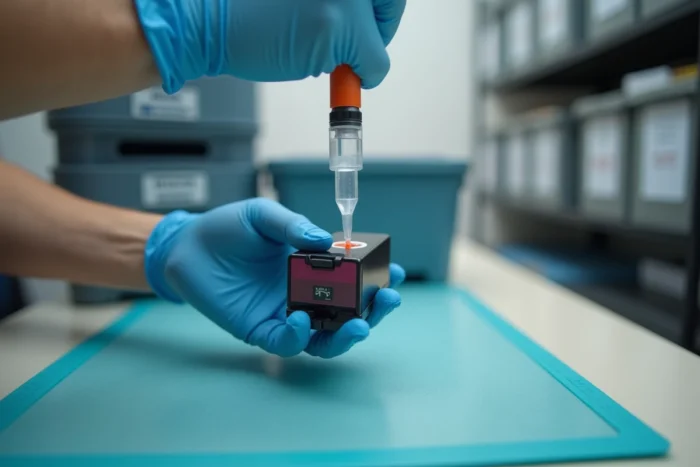
Reprogramming a Canon cartridge remains an accessible operation as long as the specific sequence for each model is followed and the physical condition of the contacts and chip is not neglected. The real gain is measured in both recovered pages and avoided cartridge purchases, provided one accepts that each cartridge has a mechanical limit that no software reset can extend.